Burning Bridges AI logoBurning Bridges AI
  • Home
  • Guides
MORE
  • Pricing

Guest

Save your creations

Credits—
  1. Home

Burning Bridges AI Video Generator

Create your own Drake-inspired Burning Bridges AI video from one image. Start with a person or pet photo, a character image, or a screenshot. Burning Bridges AI prepares the party direction for you. Choose your format and length, check the credit estimate, and give your image a new scene without filming a performance.

Burning Bridges AI trend reference, created outside this tool.

Reference image

Required · 1 image
10
Checking your sign-in status…
Strictly prohibits adult / NSFW content

Burning Bridges AI Video Examples

Explore the Burning Bridges AI trend through community videos. These examples were made outside this tool and illustrate different creative interpretations, rather than guaranteed results. Watch how framing, expression, and the surrounding room change the feeling of each clip.

Party reference

A Chandelier-Lit Performance

A guest in a red jacket takes the lead in a chandelier-lit performance, a reference for the Burning Bridges AI trend.
Animal remix

An Unexpected Party Guest

A chimpanzee in glasses and gold chains takes the spotlight in a playful community Burning Bridges AI remix.
Pet photo

A Pet Joins the Party

A golden retriever joins a chandelier-lit celebration in this community Burning Bridges AI pet remix.

How to Create a Burning Bridges AI Video

  1. Burning Bridges AI — Illustrated photo idea: a guest in a black suit under warm chandelier light
    01

    Upload a clear image

    Choose one clear image with a distinct subject: a photo of a person or pet, a character image, or a screenshot. Keep the subject visible and leave some space around it. Sign in to Burning Bridges AI, then upload a PNG, JPEG, or WebP file up to 10 MB, or select an image from your library. A clean image gives Burning Bridges AI a useful starting point.

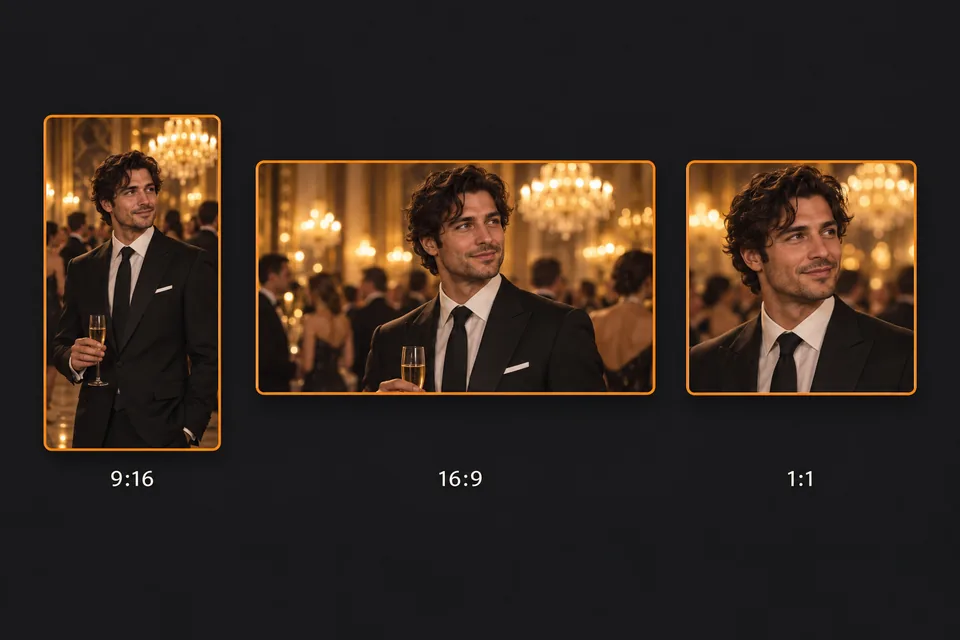
  2. Burning Bridges AI — Concept illustration of vertical 9:16, landscape 16:9, and square 1:1 framing
    02

    Choose your format and length

    Set your Burning Bridges AI aspect ratio, resolution, and duration. The default is 9:16, 720p, and twelve seconds; keep the vertical format for a phone post or choose 16:9 for a wider composition. The performance direction is already prepared, so there is no prompt to write and no model to select. Check the Burning Bridges AI credit estimate before continuing.

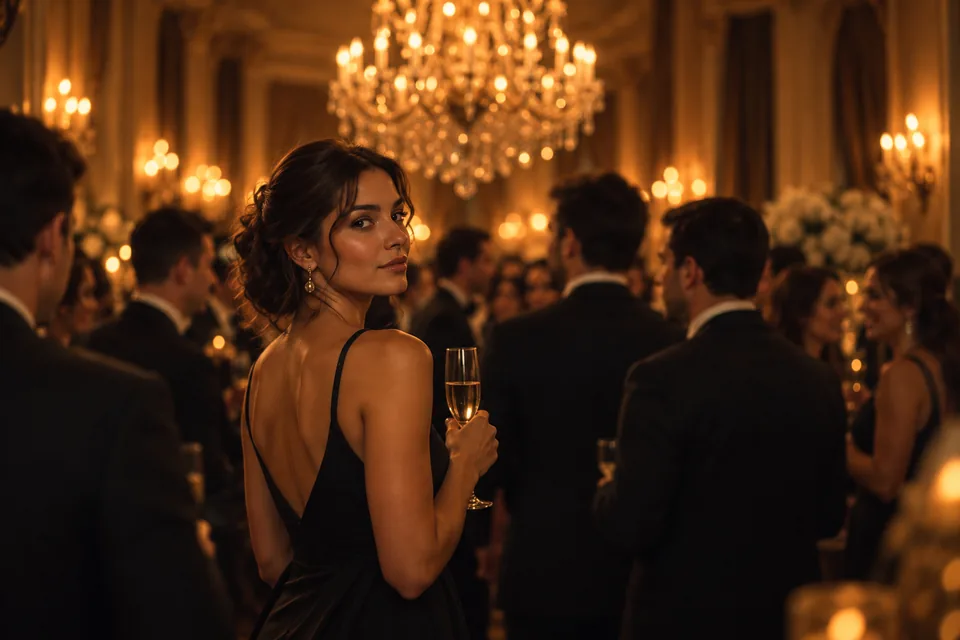
  3. Burning Bridges AI — Illustrated party scene with warm light and a guest at its center
    03

    Generate, preview, and download

    Press Generate when your Burning Bridges AI image and settings are ready. Watch the full result in your history, paying attention to the main subject, movement, and background throughout the shot. Download your Burning Bridges AI clip, then add captions or a soundtrack in your preferred editor. Signing in restores your settings but does not start a generation automatically.

What Is the Drake Burning Bridges AI Trend?

The Drake Burning Bridges AI trend turns familiar images into playful party-scene remixes inspired by the music video. The Burning Bridges meme puts people, pets, and characters in a warm, chandelier-lit setting. A familiar photo or screenshot becomes the starting point for a cinematic social clip, with a new interpretation each time.

Your image gives Burning Bridges AI its visual starting point. This version uses a prepared performance direction with warm lighting, a continuous camera take, playful gestures, and a final spoken line. Burning Bridges AI generates a scene from that combination; it does not require you to upload or edit an existing music video.

A successful take can be a glance, a playful gesture, or a small movement that suits the subject in your image. Give your Burning Bridges AI video its own mood through the source picture, colors, and framing. The result is a new interpretation, so appearance, movement, and timing can vary between attempts, especially with pets or stylized characters.

Burning Bridges AI — Illustrated party scene with warm light and a guest at its center

Burning Bridges AI Video Ideas

Put your image in the scene

Make a Burning Bridges AI video from a favorite photo, a pet picture, or a character screenshot. Choose a clear subject and a composition that leaves room for movement. Your source image guides the look and mood in Burning Bridges AI, so try a picture that feels distinctive without beginning from an extremely tight crop.
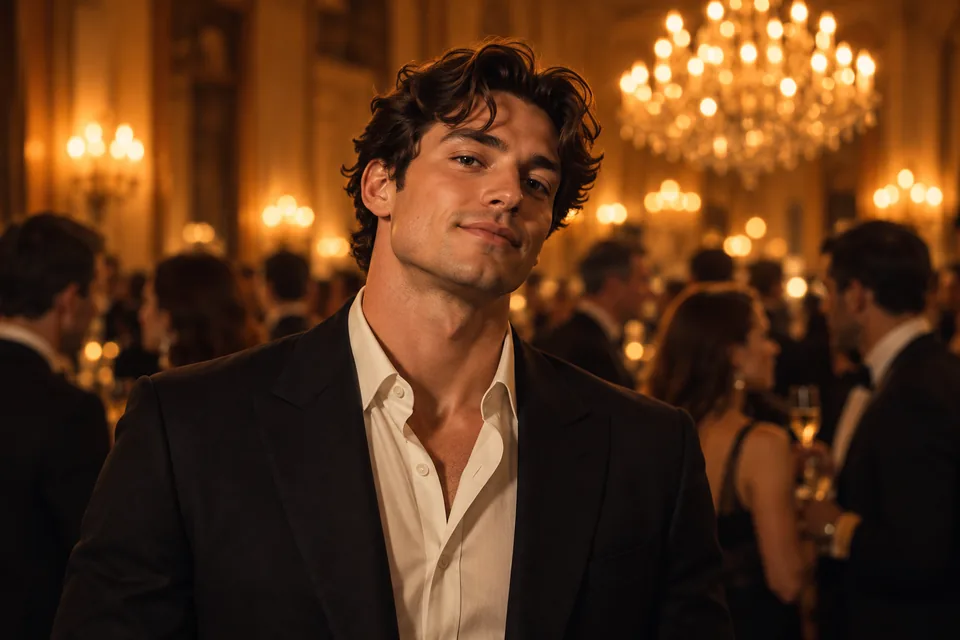
Burning Bridges AI — Illustrated photo idea: a guest in a black suit under warm chandelier light

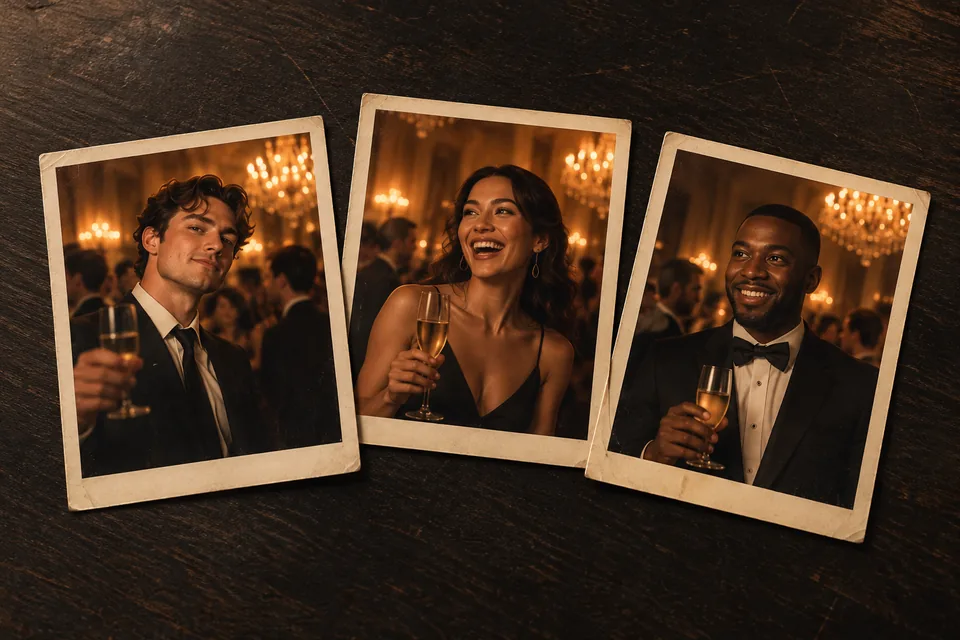
A series with friends and pets

Create separate Burning Bridges AI clips from photos of friends, pets, or favorite characters. Use pictures your friends agree to share, and keep the same aspect ratio and duration across the series. Combine the downloaded clips in an editor for a party recap or group post. Matching settings makes the clips easier to arrange on a shared timeline.

Burning Bridges AI — Illustrated idea for a series: three separate photographs

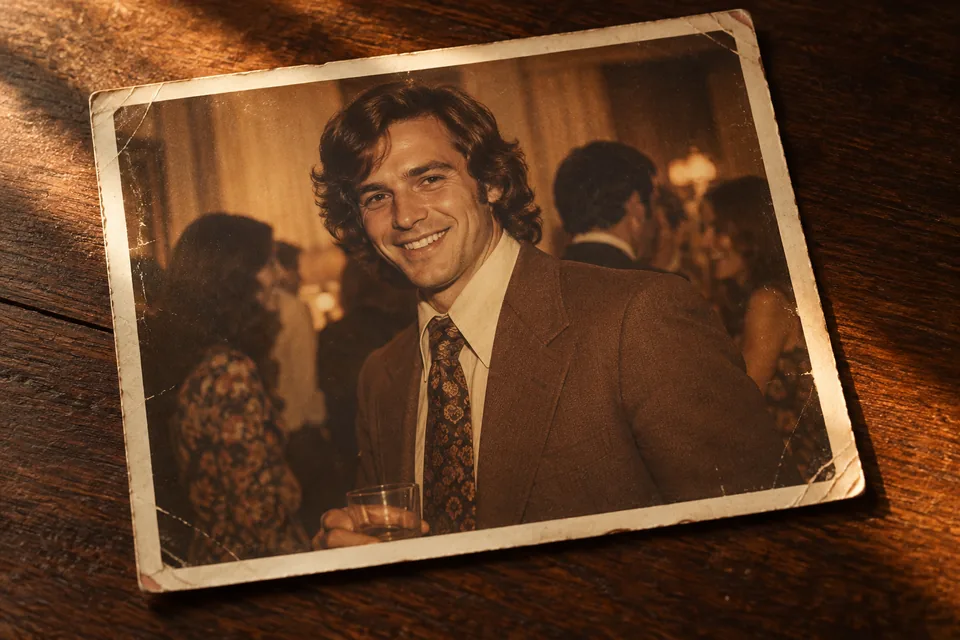
An old photo or favorite screenshot

Give an older photo or saved screenshot a new setting with Burning Bridges AI. Choose a scan or image with recognizable subject details, and crop away unnecessary borders or interface elements. If the picture is faded or small, start with the clearest version available. Review the result carefully, since generation can reinterpret details that are difficult to see in the source.

Burning Bridges AI — Illustrated throwback idea: a vintage photograph on a wooden table

Shape Your Burning Bridges AI Video

Three Burning Bridges AI controls let you fit the clip to its destination while keeping the same prepared performance style. Change one setting between attempts so you can compare the difference. Your source image remains the most direct way to influence the subject and initial composition.

Frame the moment

In Burning Bridges AI, Auto lets the model adapt the output format. Select 9:16 when you want a tall frame for a phone screen, 16:9 for a landscape edit, or 1:1 for a square composition. Keep the main subject and important details away from the edges of your source image, and check the final framing before adding captions.

Burning Bridges AI — Concept illustration of vertical 9:16, landscape 16:9, and square 1:1 framing

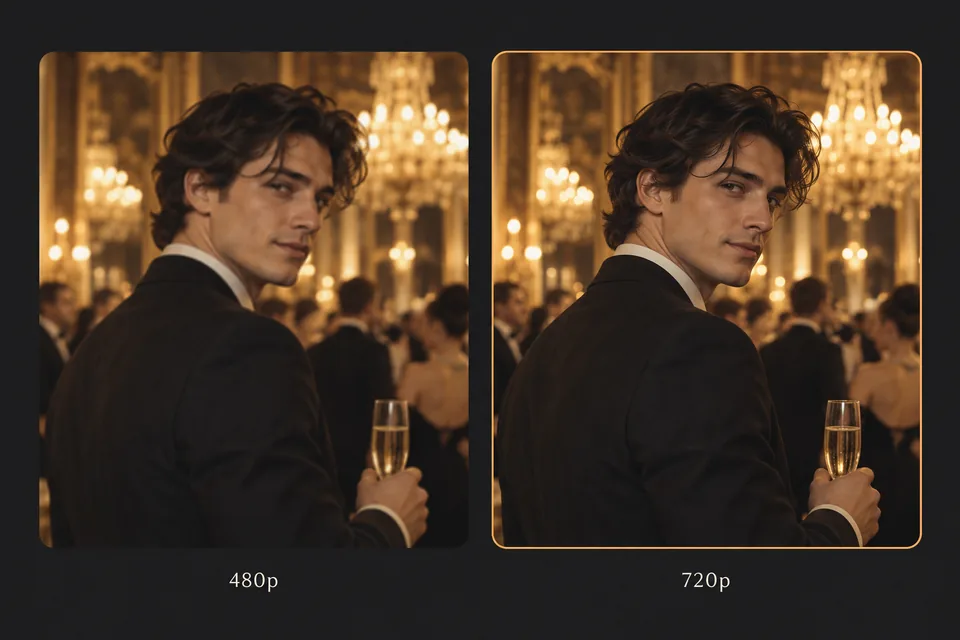
Choose 480p or 720p

Use 480p for an initial Burning Bridges AI version or select 720p when you want the higher available output resolution. A larger output cannot restore detail that is missing from a blurry photo or low-resolution screenshot. Compare the credit estimate at your chosen settings, then review the actual result at the size you intend to share.

Burning Bridges AI — Concept illustration of the 480p and 720p resolution choices

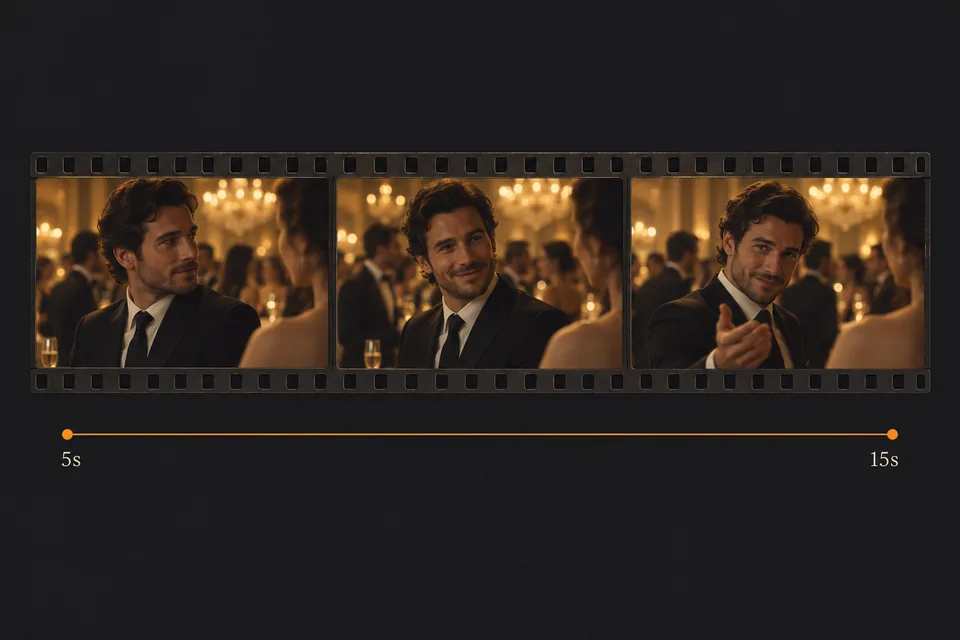
Set five to fifteen seconds

Choose a Burning Bridges AI clip length from five to fifteen whole seconds. A short clip is useful for a compact post; a longer one gives the scene more time to develop and offers more material to trim later. Length does not prescribe a specific sequence of gestures or guarantee a particular moment from the trend.

Burning Bridges AI — Concept illustration of a party clip on a five-to-fifteen-second timeline

Burning Bridges AI: Inputs, Outputs & Credits

Check the Burning Bridges AI inputs, output options, and credit examples in one place. Choose the settings that fit your image and the way you plan to share it.

AI model
Burning Bridges AI uses the Seedance 2.0 AI model to generate videos from your image.
Input
One person or pet photo, character image, or screenshot. PNG, JPEG, or WebP, up to 10 MB.
Output
5–15 seconds at 480p or 720p. Choose an available aspect ratio, including 9:16, 16:9, and 1:1.
Controls
A prepared performance direction; no prompt to write. Sign in to upload, generate, and access your history.
Music & motion
The official Burning Bridges recording is not included. Exact original gestures, timing, and appearance are not guaranteed.

Credit examples

One video per request. These estimates use the current tool settings and credit rules; check the generator before submitting.
QualityLengthCredits
480p5s3
480p12s5
480p15s7
720p5s5
720p12s10
720p15s13

Generation uses credits. Free credits, when available on your account, must cover the request. View credit packs and subscriptions.

Why Use This Burning Bridges AI Video Maker

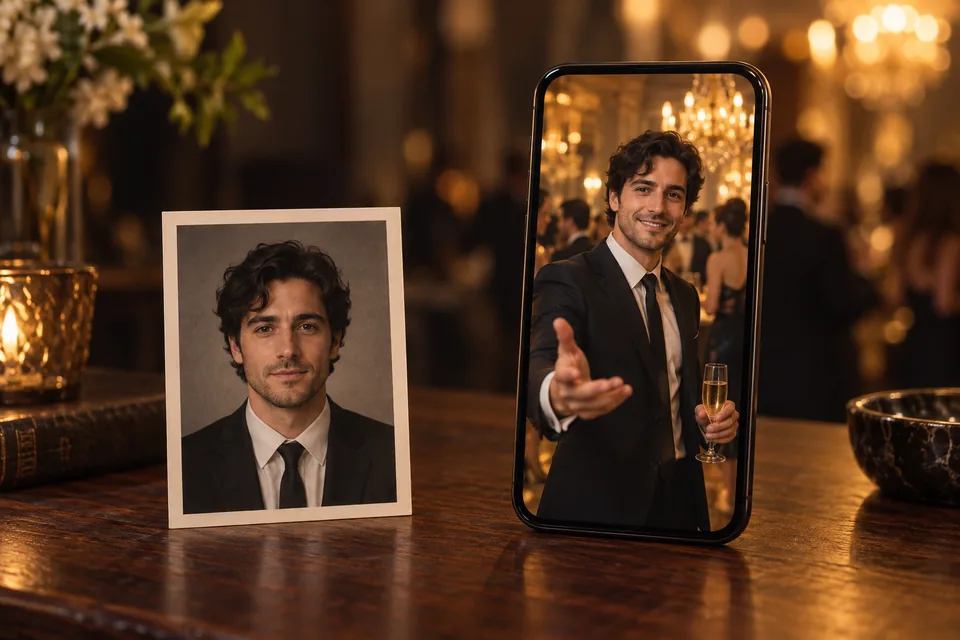
Burning Bridges AI — Illustrated image-to-video workflow with a printed photo and a phone preview

Start with an image you already have

Burning Bridges AI starts from a photo or screenshot, without filming a new performance. Try a picture of yourself, a pet, or a character and let the source set the mood. The subject should be clearly visible, and the file must meet the upload requirements.

Start with a prepared direction

Burning Bridges AI handles the performance prompt for this tool, keeping the setup focused on one image and three settings. There is no need to build a scene description from scratch. To explore another take, try a different picture or adjust the output format and length.

Finish the edit your way

Download your chosen Burning Bridges AI result and use it in your editing workflow. Add captions, combine clips, or select a soundtrack when preparing your post. Preview the finished edit on a phone as well as a larger screen so captions and details of the main subject remain easy to see.

Burning Bridges AI Guides

Follow the full Burning Bridges AI walkthrough, or explore the story behind the party-video trend.

Burning Bridges AI — Illustration of an image-to-video workflow
Oct 13, 2026

How to Make a Burning Bridges AI Video

A practical walkthrough for choosing an image, checking settings, and reviewing your party clip.
Burning Bridges AI — Illustration of a warm chandelier-lit party setting
Oct 13, 2026

The Drake Burning Bridges Meme, Explained

Understand the original video, community remixes, and what an AI version can actually do.

Burning Bridges AI FAQ

Burning Bridges AI video generation uses credits. Sign in to see your balance and check the displayed estimate before generating. If your account has free credits, you can use them when they cover the request. Available balances and prices are shown in the account and generator; each new attempt is a separate request.

Burning Bridges AI processing time varies with the selected settings and service demand. The five-to-fifteen-second control sets the length of the finished clip, not the waiting time. Follow the status in your generation history and allow time to review the result before deciding whether to make another version.

Burning Bridges AI does not supply the official recording as a soundtrack. Review any audio in your downloaded result, then add your chosen track separately when editing or posting. Available music depends on the app and account you use; preview the final combination before sharing.

The Burning Bridges AI performance direction guides a newly generated scene. It does not guarantee the original choreography, timing, or camera sequence, including the hand-above-the-eyes gesture seen in some trend clips. The community examples show inspiration; your own output depends on the image, settings, and generation.

For clearer Burning Bridges AI results, try even lighting, a visible main subject, and fewer obstructions. Avoid heavy filters, very small subjects, and screenshots covered by interface elements. Inspect the entire clip for changes to faces, paws, outlines, and background details. A detail can look correct at the beginning and change during movement; another attempt may produce a different interpretation.

Burning Bridges AI runs in your browser on desktop or mobile. No separate app is needed to upload, generate, and preview a clip. Download your result when you are ready to finish the edit or share it. Sign in to access the reference picker and your generation history.

Burning Bridges AI accepts exactly one reference image and uses a fixed performance prompt. The image can be a photo of a person or pet, a character picture, or a screenshot. The available controls are aspect ratio, resolution, and duration. To make a series, generate separate clips from individual images and join the results in your own editor.

No. Burning Bridges AI is an independent creation tool and is not affiliated with Drake or the official Burning Bridges music video. You create a new AI scene from a reference image. The artist and song names describe the creative inspiration, rather than an endorsement of the tool.

Make Your Burning Bridges AI Video

Upload a clear image to the Burning Bridges AI video generator and give a person, pet, or character a new party scene. Start with a photo or screenshot, choose the format and length, review the result, and finish the edit your way.

Create my Burning Bridges AI video
Burning Bridges AI logoBurning Bridges AI

Turn one image into your own Burning Bridges AI party video.

Customer supportsupport@burning-bridges-ai.pro

Learn more

  • How to Make a Burning Bridges AI Video
  • The Drake Burning Bridges Meme, Explained
  • Pricing

Legal

  • Privacy Policy
  • Terms of Service
  • Refund Policy
  • Contact

© 2026 Burning Bridges AI